
Build and adjust the schedule
Drag activities on the Gantt timeline, switch between three views, and mark days worked or closed without leaving the grid.
Last updated
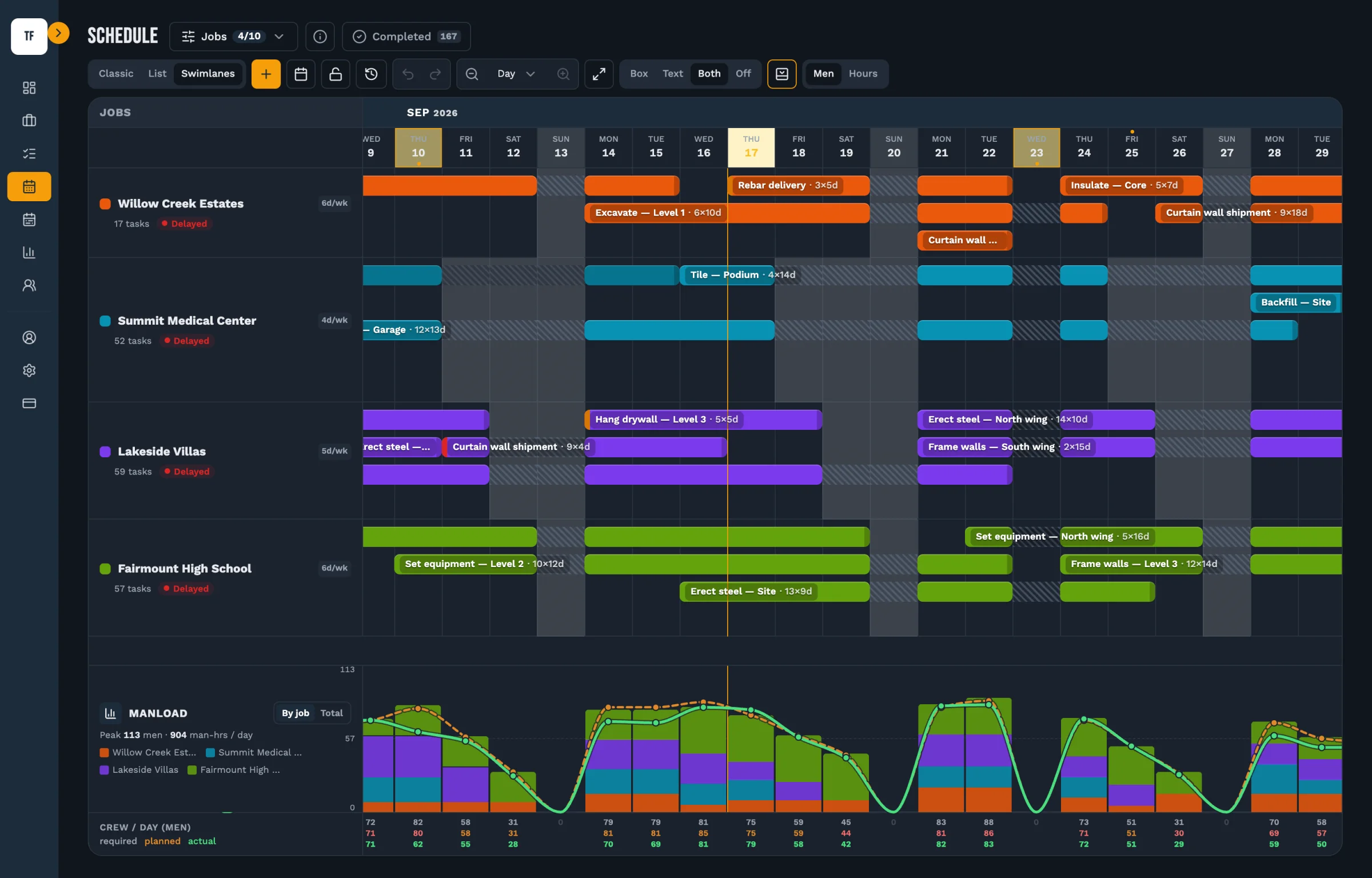
The scheduler is the Gantt view across every job at once. Bars are coloured by job, and the grid behind them shades weekends, public holidays and shutdowns so you can see immediately why a bar skips a week.
Three views show the same data differently: Classic is the traditional Gantt, List adds search and filtering by trade and status, and Swimlanes separates each job into its own band.
Open Schedule
Choose Schedule in the sidebar. Everything not hidden by the job filter appears on one timeline.
Choose a view
Switch between Classic, List and Swimlanes at the top. The choice is yours alone — it doesn't change anyone else's screen.
Move an activity
Drag a bar sideways to change when it starts. Its length is preserved, so dropping it on a Wednesday means it starts Wednesday rather than collapsing to that day.
Unlock the grid before dragging on a touch screen
The grid is locked by default on phones and tablets so scrolling the timeline can't move real dates by accident. Unlock it deliberately when you mean to edit.
Switch a single day on or off
Select a day in the header to mark it a working day for every job, or to close it. A day switched on by hand outranks a holiday or a shutdown — the bars, the charts and the calendar all follow immediately.
Worth knowing
- An override always wins over the holiday lists. If you mark a shutdown day as working, it stops being shaded everywhere in the product, including inside a multi-day shutdown.
- Hiding jobs with the filter changes only what you see. It never changes dates, and it never affects anyone else.
Still stuck?
Tell us the job and the dates involved and we'll usually answer without a call.
Or email Support@tradeflowplanner.com