
Create your first job
Add a job, give it a colour, and set the working calendar it follows — the container every task and crew number hangs off.
Last updated
A job is one project: a build, a fit-out, a service contract. Activities, crew numbers and calendar items all belong to a job, and most views let you show or hide jobs to focus on one at a time.
Colour matters more than it looks. Every bar on the schedule and every band on the manpower chart is coloured by its job, so picking distinct colours early is what makes a busy timeline readable.
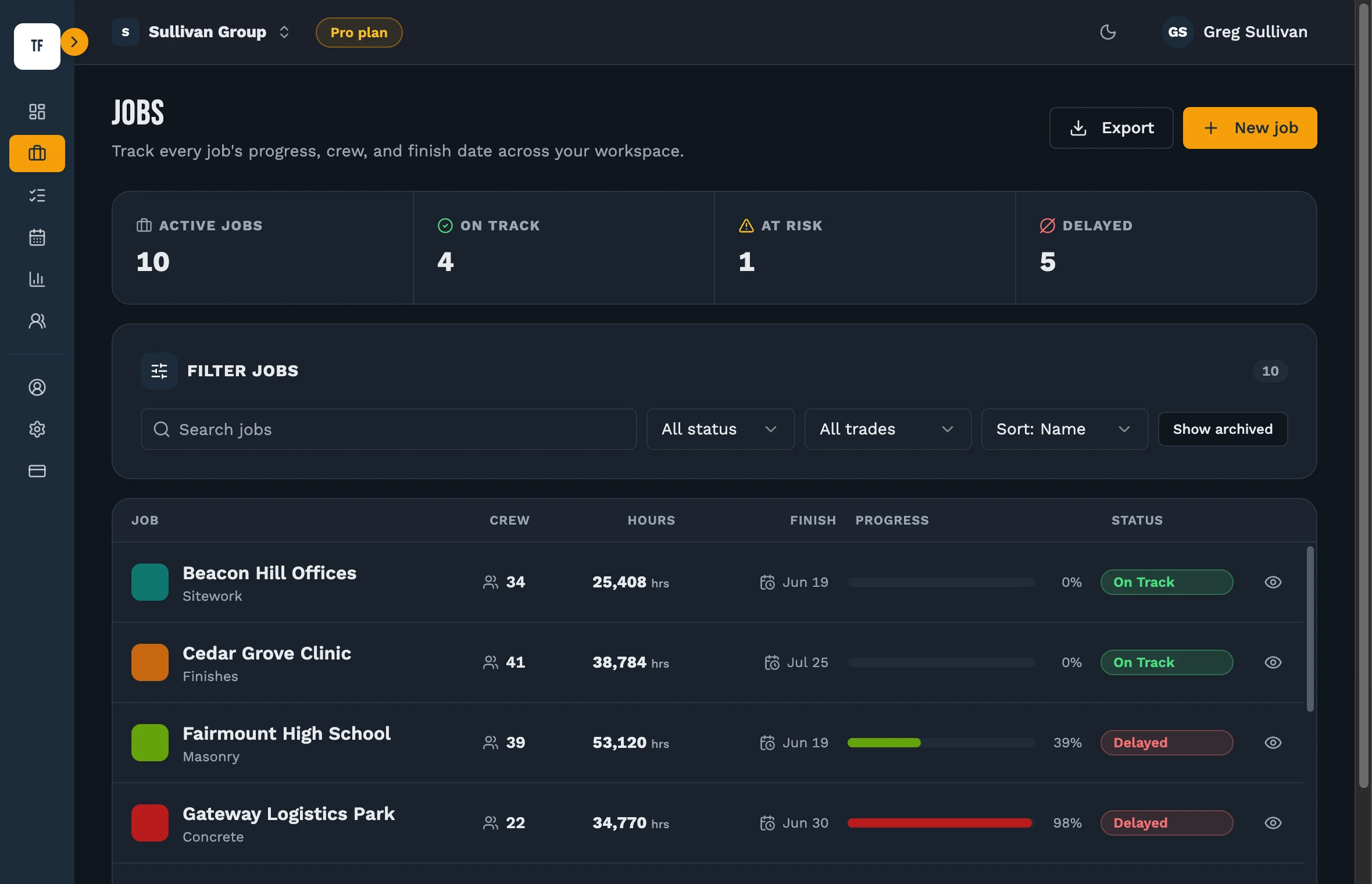
Open Jobs
Choose Jobs in the sidebar. If this is a new workspace the list is empty and the filters are all showing.
Select New job
The button sits at the top right of the page. Only owners and admins see it — if you're a member and it isn't there, that's your role, not a fault.
Name it and pick a trade
Use the name the crew actually says out loud. Trade is the primary discipline, used to group and filter jobs later.
Choose a colour
Pick one of the eight presets or enter a hex value. Choose something clearly different from your other live jobs — this is the colour the job wears on every chart.
Create the job
Select Create job. It appears in the list straight away and is immediately available in the scheduler, manpower and calendar.
Override the working calendar, if this job differs
Open the job and find Work schedule. Every field inherits the workspace default until you switch it to Custom — use it for a job on a six-day week, a different region, or its own site shutdowns.
Worth knowing
- Archived jobs drop out of the lists and the charts but keep all their data. Use Show archived on the Jobs page to see them again.
- A per-job shutdown only closes that job. A company shutdown, set in Settings, closes every job at once.
Still stuck?
Tell us the job and the dates involved and we'll usually answer without a call.
Or email Support@tradeflowplanner.com